Hydrilla for Blender
The Hydrilla add-on for Blender generates from a prompt or image inside your scene. It also receives models that you send from Studio through the local Bridge.
For Blender artists, that means the whole loop happens in one window. You can block out a scene, generate the pieces it needs from the sidebar, and keep modeling, sculpting, or shading around them without a browser download in between.
Install from disk
The add-on installs like any other Blender add-on, from a single zip file.
- Download hydrilla-blender.zip using the button on this page.
- In Blender, open Edit > Preferences > Add-ons.
- Open the menu at the top right and choose Install from Disk.
- Select hydrilla-blender.zip, then tick the box to enable the Hydrilla add-on.
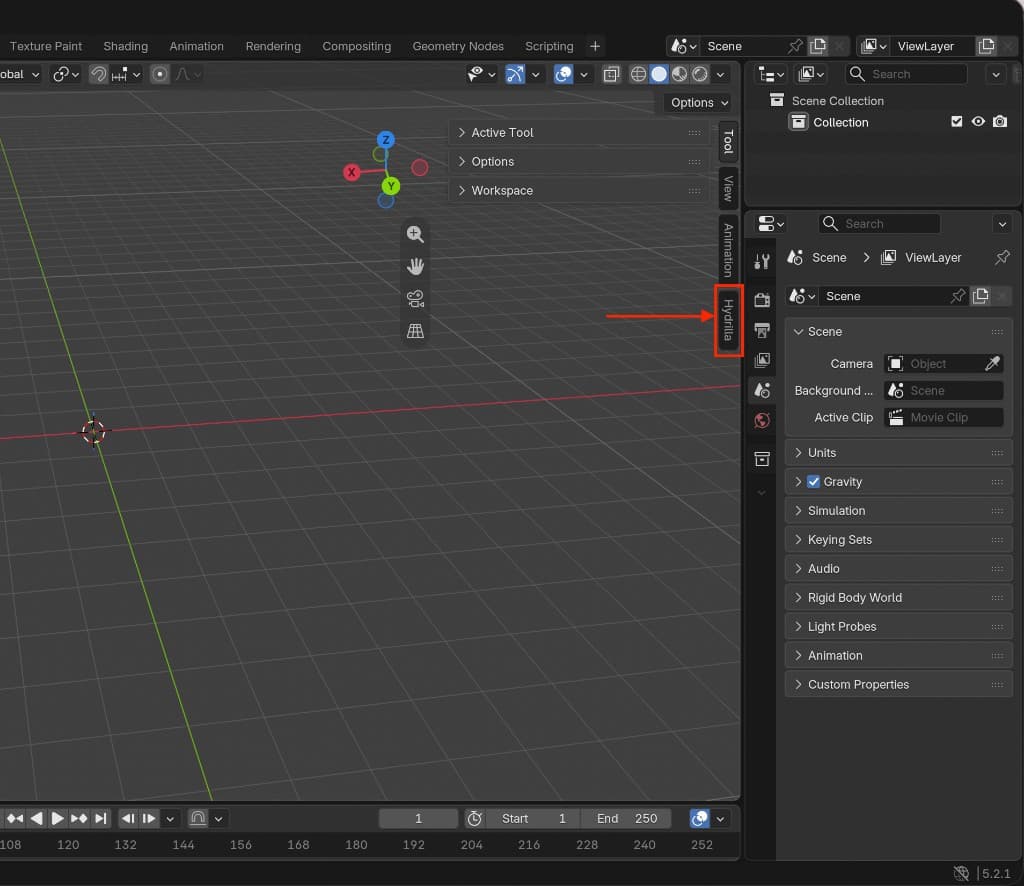
- In the 3D Viewport, press N to open the sidebar, then click the Hydrilla tab.
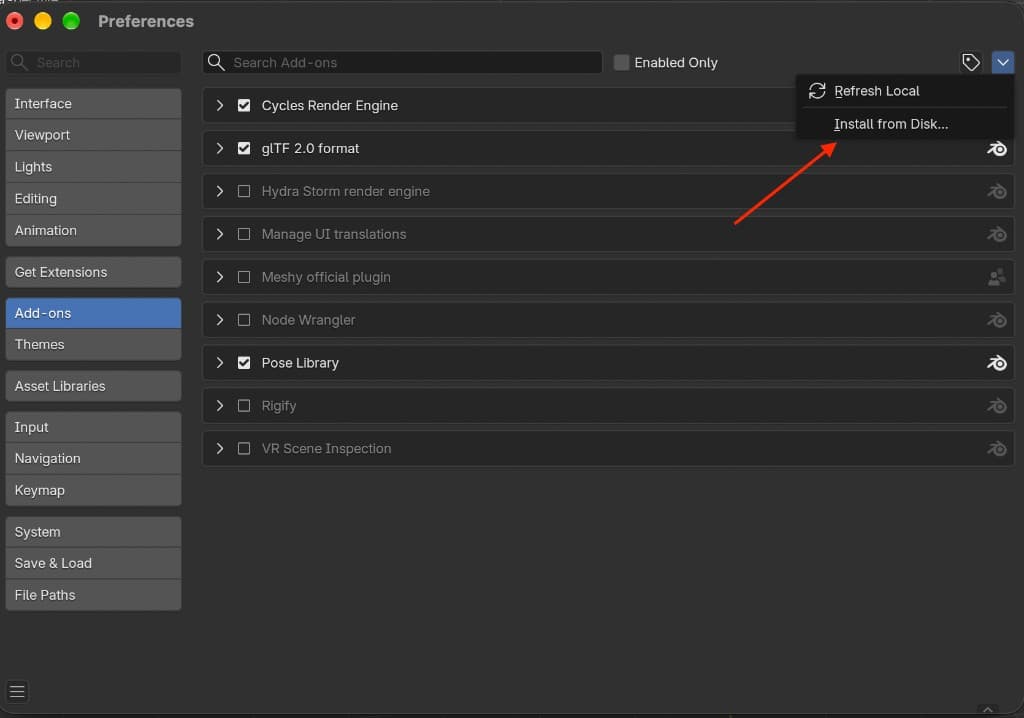
Step 3Install from Disk
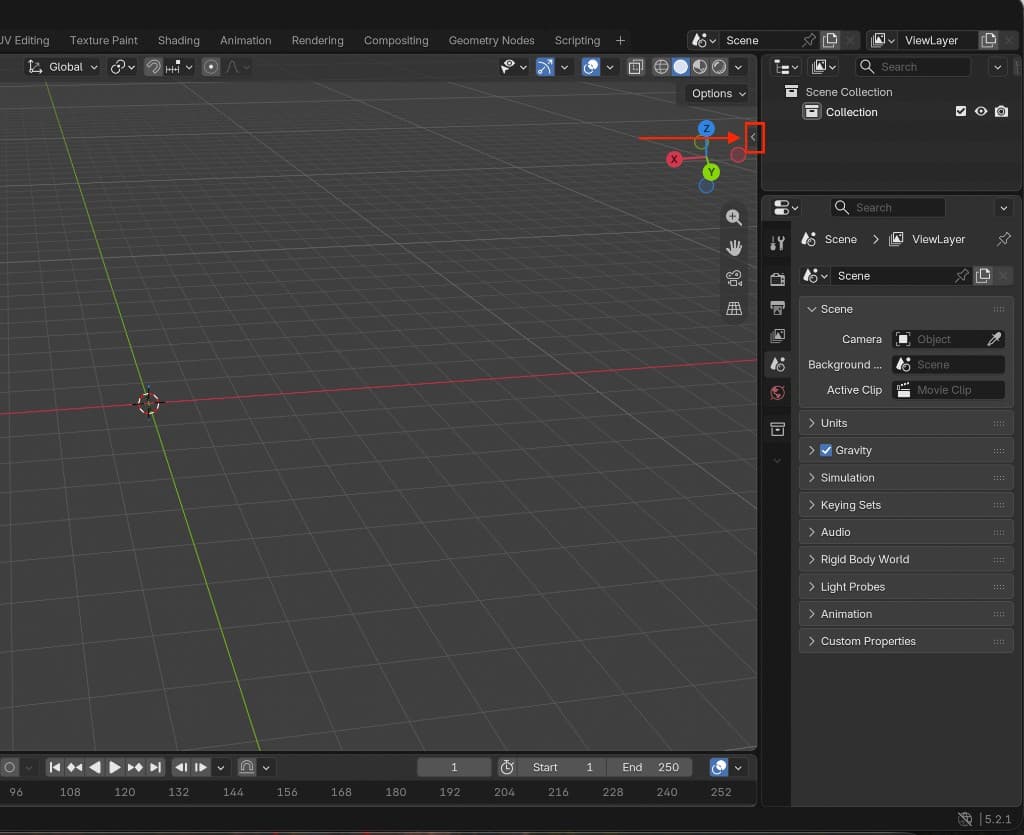
Step 5Open the sidebar
Direct whole sets from Blender
Once the add-on is installed, Water Agent works inside Blender through it. Brief a full set, check the plan, and refine individual pieces while the scene stays open in front of you. What Water Agent does
Generate in the Hydrilla tab
Click Run Bridge, then Sign in and finish the login in your browser. Choose Sync, keep the Connect tab open, and generate from a typed prompt or a picture, or use Send to DCC from Studio. Generated models arrive in the open scene, ready for you to place, light, and shade.
Troubleshooting
- The add-on says I'm signed out.
- Leave the Connect browser tab open while you work, then choose Sync again. An API key also works if you prefer keys to browser sign-in.
- Nothing arrives when I send from Studio.
- Check that Run Bridge is active in the Hydrilla panel and Blender is open on a scene, then send again. Formats other than GLB are covered on exports.
- The model looks too small or too large.
- Blender works in meters with Z up. Check the units table before you scale anything by hand.